RoWorld Controls & HUD Reference
What every button, slider and number on your screen is telling you.
RoWorld looks like a strategy game, but almost everything is driven by two inputs: a left click and a right click. Once you know what those two clicks do in each situation, and what the numbers on the HUD mean, the interface stops being intimidating.
The two clicks that run the game
Left click on an unclaimed tile expands your territory into it. Left click on an enemy nation attacks it. There is no separate attack button for land — the same click does both, and the game knows which one you meant based on what you clicked.
Right click on any nation opens the radial action wheel. That wheel is the entire menu system of RoWorld. Depending on the nation you clicked and the state of the match, it can offer you Info, Attack, Ally, Boat, Build, Nuke, Donate, Retreat and — once you are actually allied — Betray. Everything in this game is reached from that one wheel.
There are a few other interactions worth knowing:
- Click an existing City again to upgrade it. You do not place a second building on top of the first; you click the one you already own.
- Click a fallout tile to send troops into it and decontaminate it. The prompt reads “Fallout zone - Click: expand with troops”.
- Boat invasions work in the opposite direction. Right click the water-separated nation, choose Boat, and then click the enemy coastline directly — not the open sea between you.
The attack-ratio slider
The attack ratio is the single most important setting on the screen and most new players never touch it. It tells the game what share of your standing army each click commits.
The presets you will see are 10, 25, 35, 50 and 75 percent, and the default is 25 percent. Some builds also include a 100 percent option. On desktop, Q and E move the ratio down and up.
The slider applies to every troop-consuming action, which is the part that trips people up. Expanding, attacking and clearing fallout all draw from the same pool. When your expansion clicks suddenly start eating your army, it is usually because the ratio is sitting at 50 or higher.
If you only change one thing about how you play, change this. A 10 percent ratio lets you expand safely while keeping a real reserve, and the expansion strategy guide explains how to use it.
Reading the HUD
The interface is dense, but every panel answers one question.
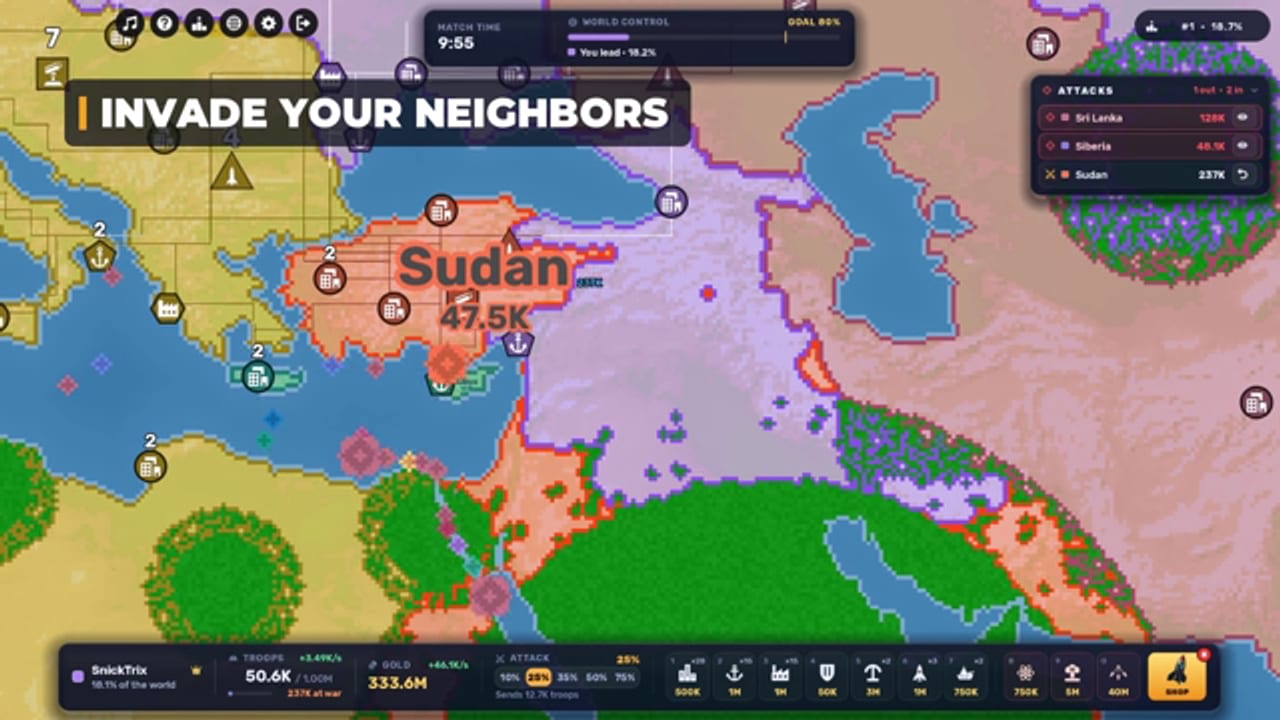
The world control bar at the top shows your share of the map against the GOAL marker at 80 percent. This is the number that decides the match.
The PROTECTED timer next to it counts down the opening invulnerability window. It reads 5:00 on Relaxed, 3:00 on Standard and 2:00 on Brutal.
Troops / Cap shows the divisions you have standing and the maximum you are allowed. Cities raise the cap, so a rising cap means your economy is working.
The gold balance and the green rate beside it are your treasury and your income per second. The rate is the number that matters: divide a building price by it and you get the number of seconds until you can afford that building. That single trick is the foundation of the economy guide.
The Attacks panel in the top-right corner lists incoming and outgoing battles. It is the fastest way to find out which front is being hit and which of your pushes is stuck.
Your Land % under your name is your personal share of the map, separate from the world bar.
Build menu placement rules
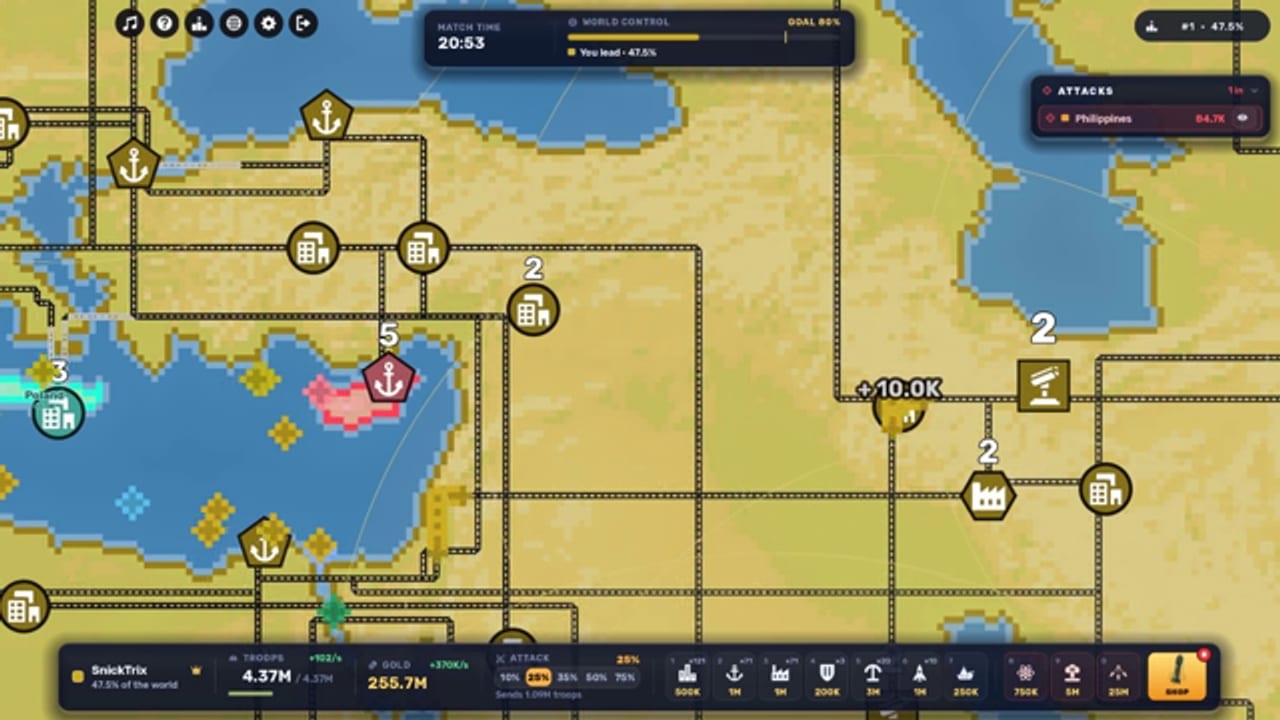
The build bar sits along the bottom of the screen, and each button prints its own gold price. Two placement rules will make you stop wasting clicks:
- “Build on your own land” means you are trying to place a structure outside your territory.
- “No room here: structures need space” means you are too close to another structure.
- Ports need a coastal tile. If the port button refuses to place, you are not on the coast.
Nuke targeting
When you are selecting a nuclear target, X cancels the pending action. That single key is what stops a misclick from turning your capital into a crater, so get into the habit of holding it.
Quick reference
| Action | Input |
|---|---|
| Expand into unclaimed land | Left click |
| Attack an adjacent nation | Left click |
| Open the action wheel | Right click on a nation |
| Lower / raise attack ratio | Q / E |
| Cancel nuclear targeting | X |
| Upgrade a building | Click the existing building |
| Decontaminate fallout | Click the green tile |
| Launch a boat invasion | Right click, choose Boat, click the coastline |
If you are ready to play with the fundamentals in place, continue to the getting started guide and then set up your income with the gold and buildings guide.
Frequently Asked Questions
Quick answers to the questions RoWorld players ask most.
How do I attack in RoWorld?
Left click the enemy nation that borders your territory. The same click expands into unclaimed land, so the game decides based on what you clicked. The controls guide explains the full input list.
What does the attack ratio slider do?
It sets what share of your standing army each click commits. The default is 25 percent, Q and E adjust it on desktop, and it applies to expansion, attacks and fallout clearing alike.
How do I open the menu in RoWorld?
Right click on any nation. The radial action wheel contains Info, Attack, Ally, Boat, Build, Nuke, Donate and Betray depending on the situation.
What does the green number next to my gold mean?
That is your income per second. Divide any building price by it to see how many seconds you need to save. The economy guide builds a whole plan around that number.
How do I cancel a nuke launch?
Press X while the target is being aimed. It is worth memorising, because a misclick during targeting sends the strike to the wrong tile.